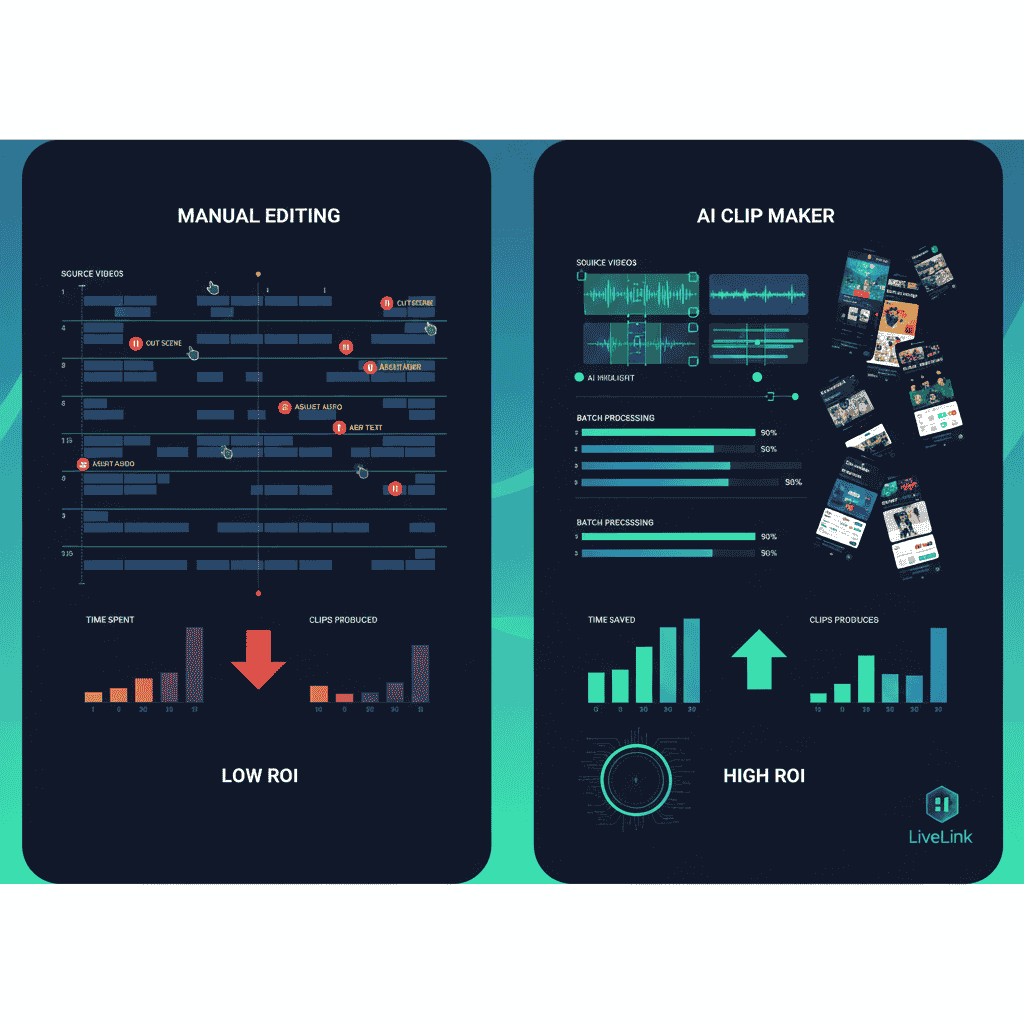

Large video files create constant headaches. Upload limits reject your content, storage fills rapidly, sharing takes forever, and editing performance crawls. You need those videos split into manageable clips, but manually finding perfect split points and exporting each segment wastes entire afternoons on repetitive technical work.
Intelligent splitting tools eliminate this bottleneck through automated analysis that identifies natural break points, maintains quality throughout division, and exports multiple clips simultaneously. Your hour long recording becomes organized segments ready for editing, uploading, or distribution without degrading quality or consuming days.
The difference between struggling with massive files and working efficiently with organized clips determines productivity. Smart creators automate splitting, reclaiming time for actual content creation rather than technical file management that generates zero creative value.
Quick Overview:
- LiveLink AI
- Filmora
- VEED
- Adobe Express
- Canva
- Kapwing
- Bandicut
- Shotcut
- DaVinci Resolve
- Flowjin
1. LiveLink AI
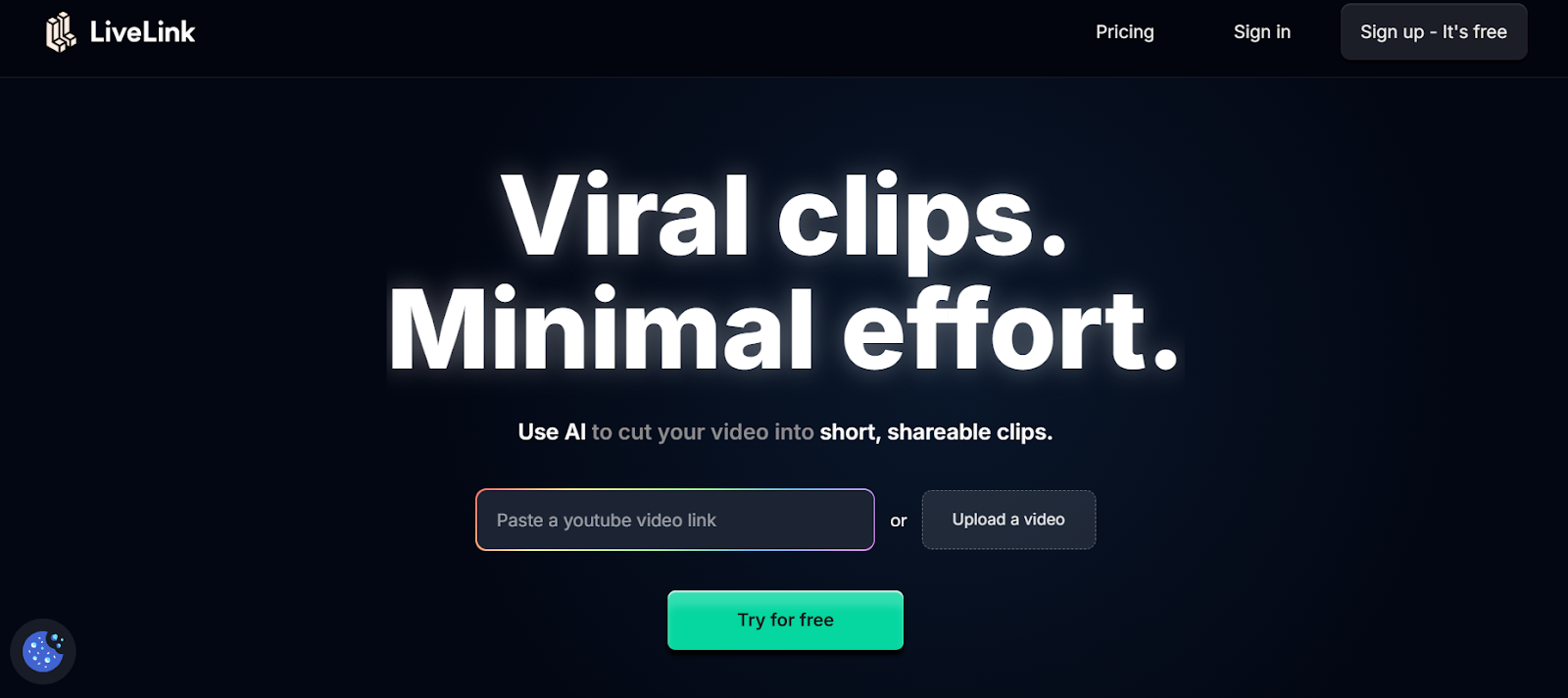
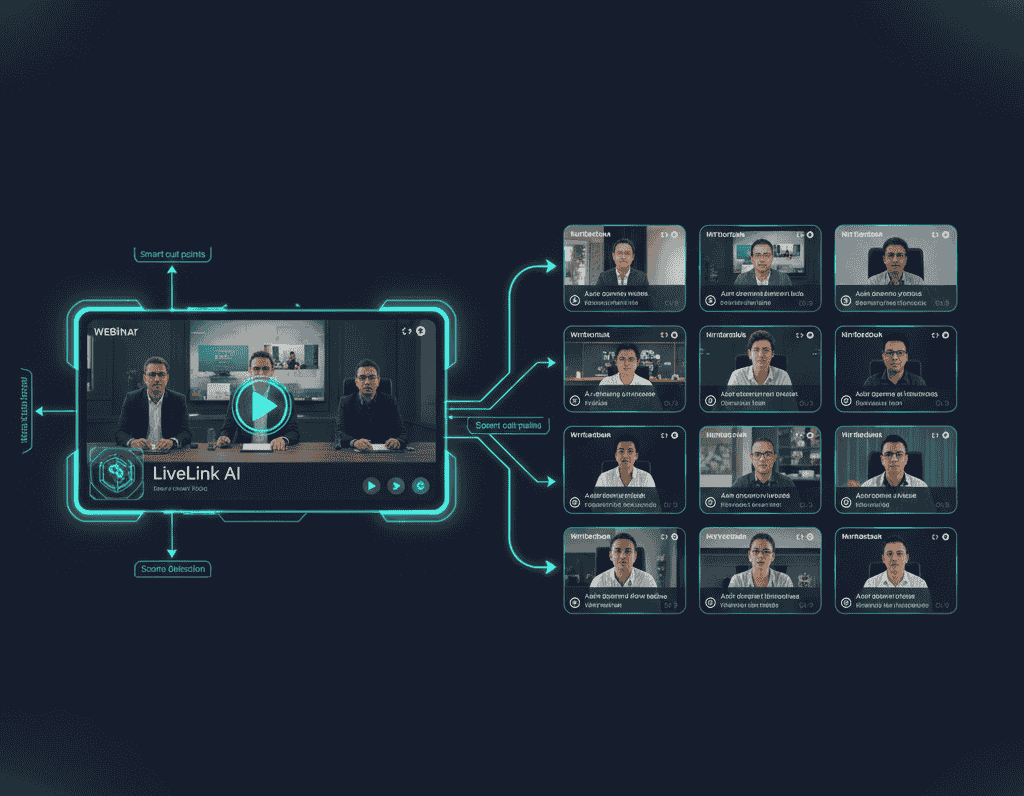
LiveLink AI revolutionizes video splitting through intelligent scene detection that identifies natural break points automatically. This platform understands content structure rather than arbitrarily dividing files at random intervals, ensuring each resulting clip contains complete thoughts, scenes, or segments that function independently.
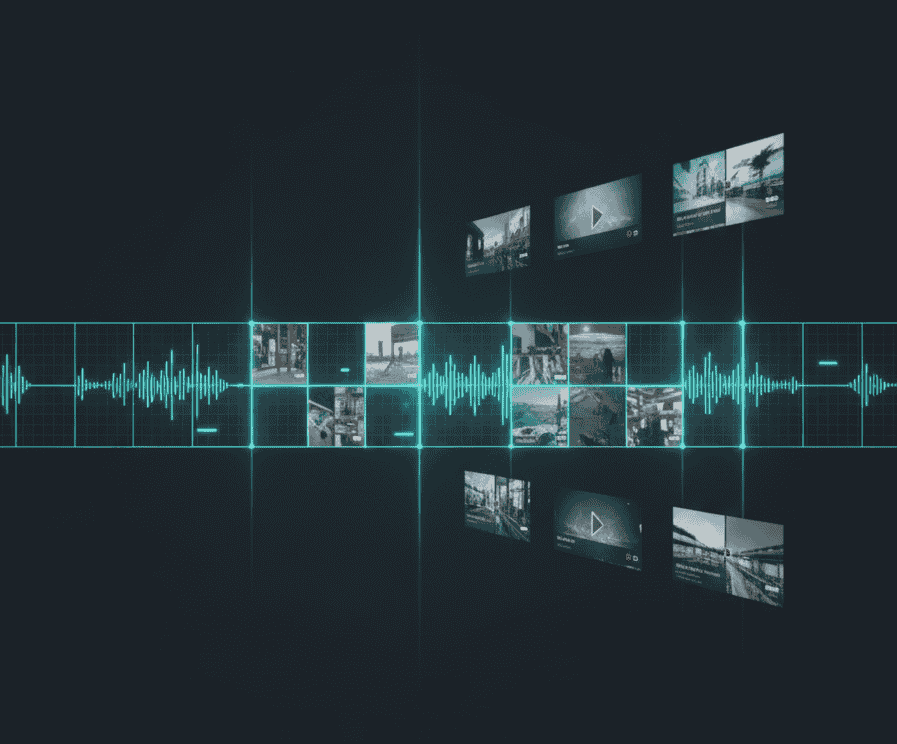
The technology analyzes beyond simple time markers. Where basic splitters cut videos at specified durations regardless of content, LiveLink AI evaluates topic transitions, speaker changes, visual scene shifts, and natural pauses. Your splits occur at logical points that make sense rather than mid sentence or mid action, producing usable clips without manual adjustment.
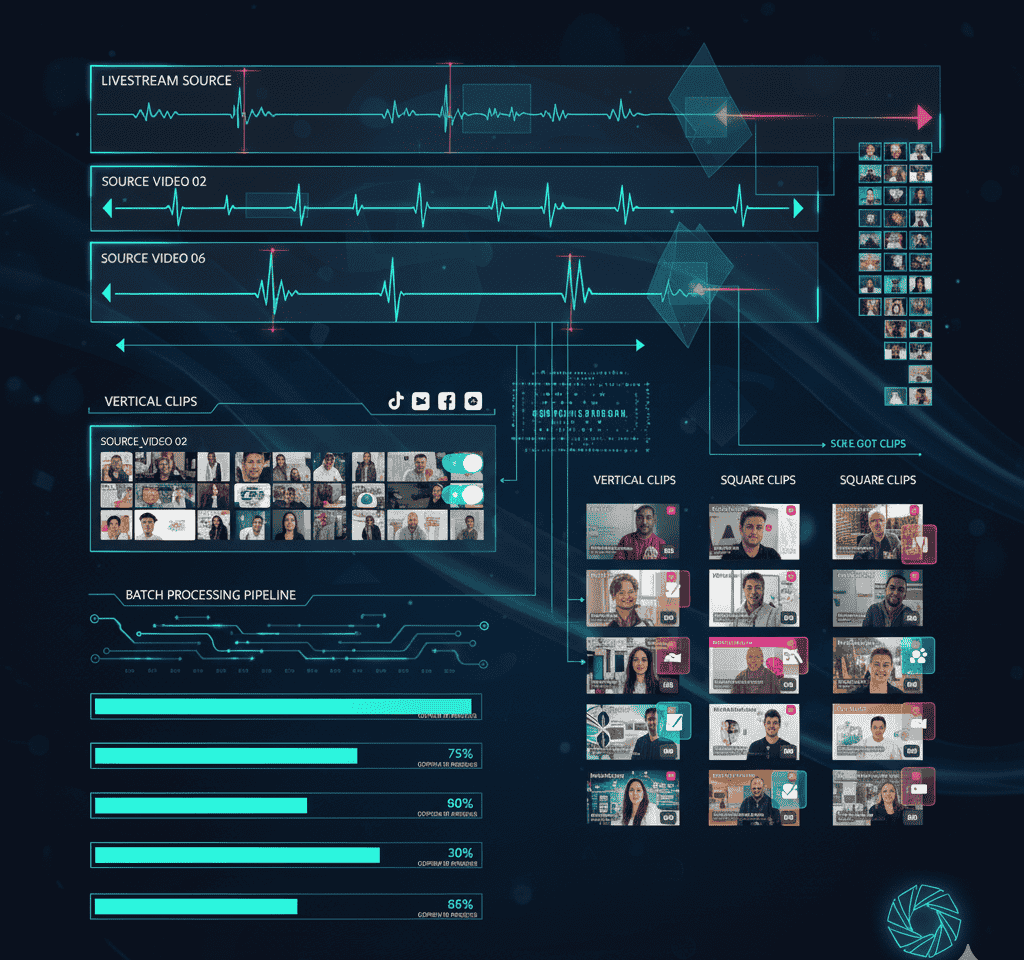
Batch splitting handles entire video libraries simultaneously. Upload folders containing dozens of large files, specify splitting preferences once, then retrieve hundreds of organized clips sorted by content type, duration, or custom parameters. Each clip maintains original quality through intelligent encoding that prevents cumulative degradation from multiple processing passes.
The platform anticipates editing workflows automatically. Generated clips arrive named systematically, organized into folders by source file, and formatted appropriately for target platforms. Metadata preservation ensures proper attribution throughout splits. Quality presets optimize each segment for intended usage whether web streaming, social posts, or archival storage.
Key Features:
- Intelligent Scene Detection Analyzes video content to identify natural break points based on topic transitions, speaker changes, and visual scene shifts rather than arbitrary time intervals that create awkward mid action splits
- Content Aware Splitting Ensures each resulting clip contains complete thoughts or scenes that function independently, preventing fragmented segments requiring context from surrounding footage to make sense
- Quality Preservation Technology Maintains original video quality throughout splitting process through smart encoding that prevents cumulative degradation common when processing files multiple times through generic tools
- Batch Processing Capability Handles entire folders of large video files simultaneously, generating hundreds of organized clips while you focus on other tasks rather than babysitting individual file splits
- Automatic Organization System Names and sorts generated clips systematically based on content type, source file, duration, or custom parameters, eliminating manual file management after splitting completes
- Multi Format Export Support Outputs clips in various formats optimized for specific uses including web streaming, social media posting, editing workflows, or archival storage without requiring secondary conversion
2. Filmora
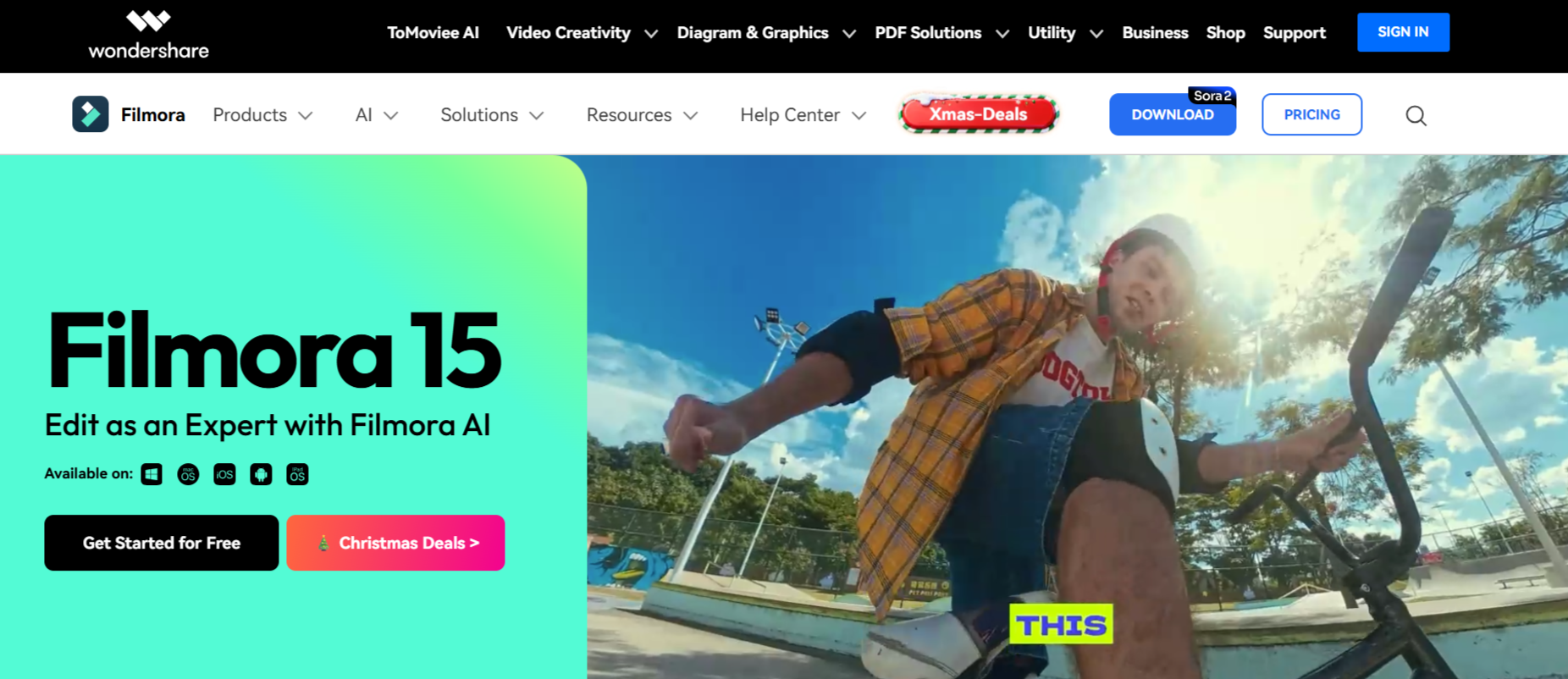
Filmora provides comprehensive splitting capabilities through multiple methods catering to different workflow needs. The Quick Split Mode enables rapid division of long videos by clicking directly on the timeline, while Scene Detection automatically identifies and separates footage based on shot transitions.
The Instant Cutter Tool handles large 4K files efficiently without quality loss. This feature proves invaluable when working with high resolution footage requiring division before detailed editing begins, maintaining pristine quality throughout the process.
Key Features:
- Scene Detection automatically splits videos based on shot transitions
- Quick Split Mode enables rapid timeline based division with single clicks
- Instant Cutter Tool processes large 4K files without quality degradation
3. VEED
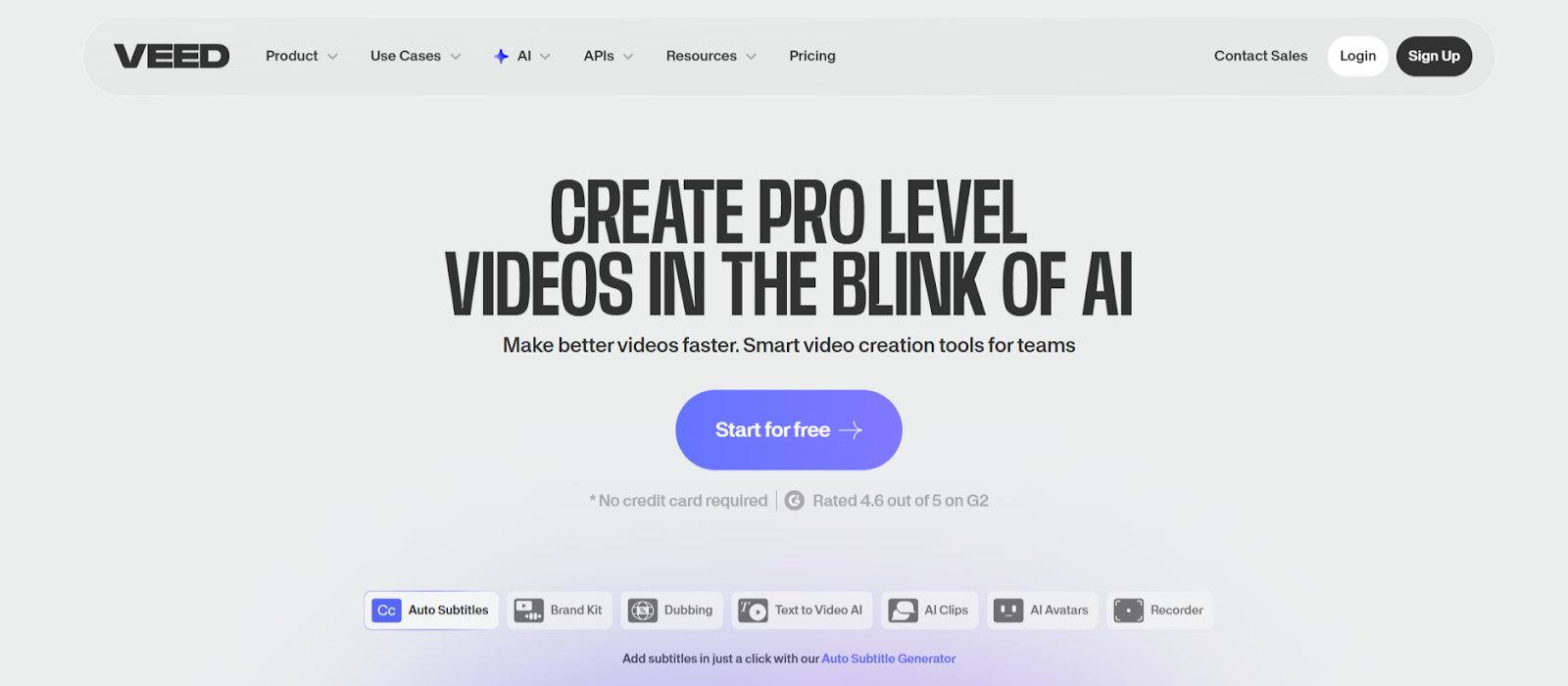
VEED offers browser based splitting that requires no software installation. The timeline interface displays clear visual markers enabling precise split point selection. Press S on your keyboard or click the split button to divide videos at exact frames.
Magic Cut takes automation further by letting AI identify and remove unwanted sections automatically. This feature streamlines splitting by eliminating manual identification of segments worth keeping versus deleting.
Key Features:
- Browser based operation works across all devices without installation
- Keyboard shortcut S enables rapid splitting during timeline scrubbing
- Magic Cut AI automatically identifies and removes unwanted sections
4. Adobe Express
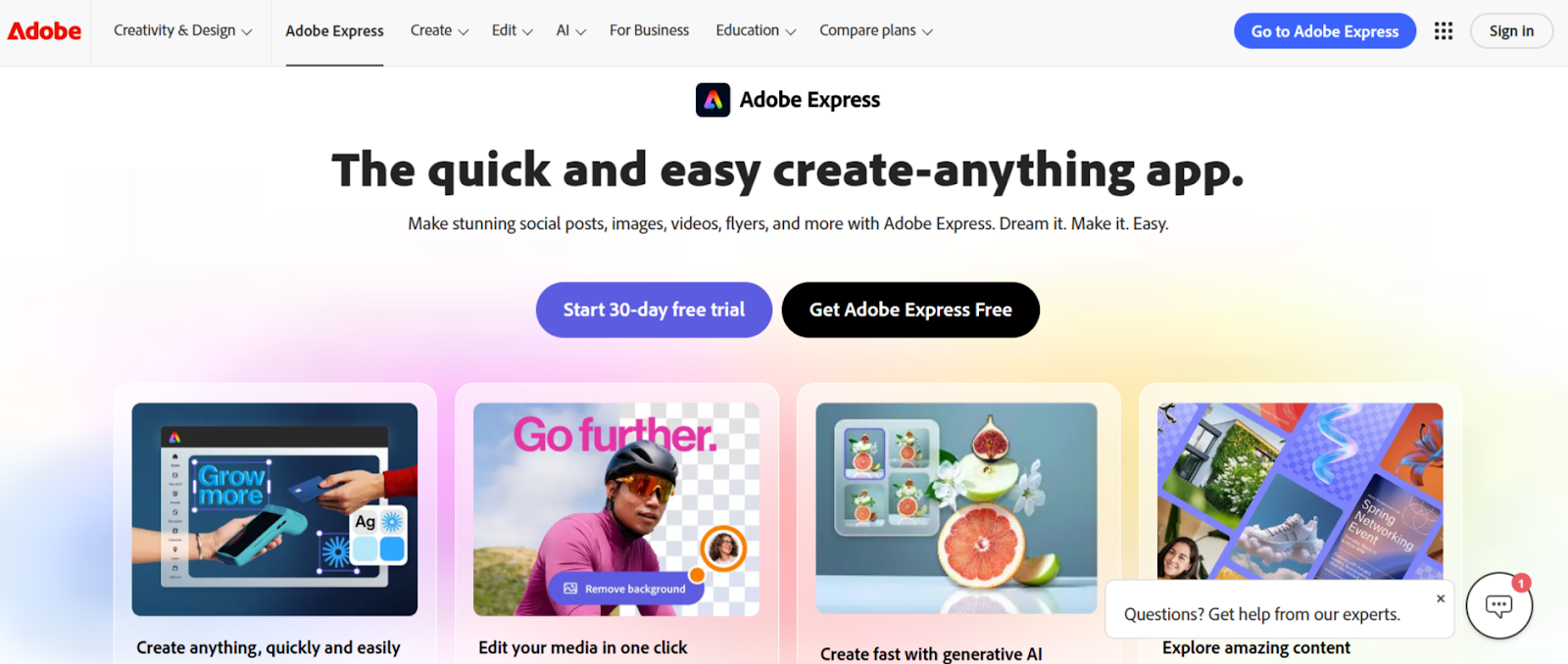
Adobe Express simplifies splitting through intuitive right click controls. Select split points on the timeline, right click, and choose split to divide videos into multiple parts. Drag corner edges to adjust segment durations precisely after initial splits.
The Resize tool enables format conversion during splitting, generating clips optimized for TikTok, Instagram Reels, YouTube, and other platforms simultaneously from single split operations.
Key Features:
- Right click split controls simplify division with intuitive interface
- Corner drag adjustments enable precise duration control after splitting
- Resize tool converts clips to multiple platform formats simultaneously
5. Canva
Canva provides accessible splitting through drag and drop simplicity. Upload videos to the timeline, hover over split points, right click and select split or press S. Repeat the process multiple times until achieving desired segment divisions.
The browser based editor requires no downloads while maintaining professional capabilities. Visual timeline guides help identify exact minute markers through timestamp displays appearing during playhead dragging.
Key Features:
- Drag and drop interface with right click or S keyboard splitting
- Timestamp guides enable precise minute by minute divisions
- Browser based access works across devices without installation
6. Kapwing
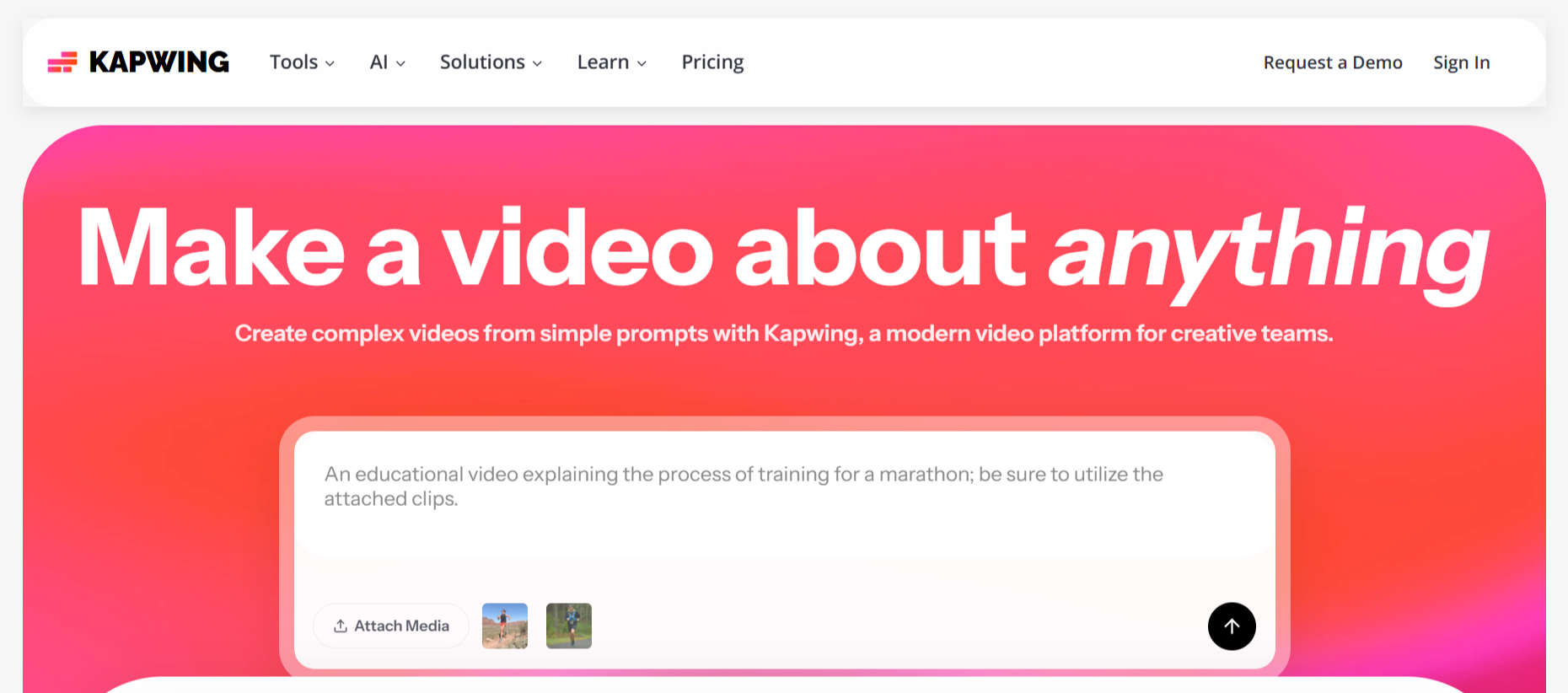
Kapwing offers online splitting with collaborative features supporting distributed teams. The visual timeline and intuitive controls enable accurate clip division even for users without extensive editing experience. Split videos directly in browser without software downloads.
The platform handles various video formats including MP4, MOV, and AVI. Export completed splits directly to social platforms or download for local storage, streamlining distribution workflows.
Key Features:
- Visual timeline with intuitive controls for accurate splitting
- Collaborative features enable team review and editing workflows
- Direct social platform export streamlines distribution after splitting
7. Bandicut
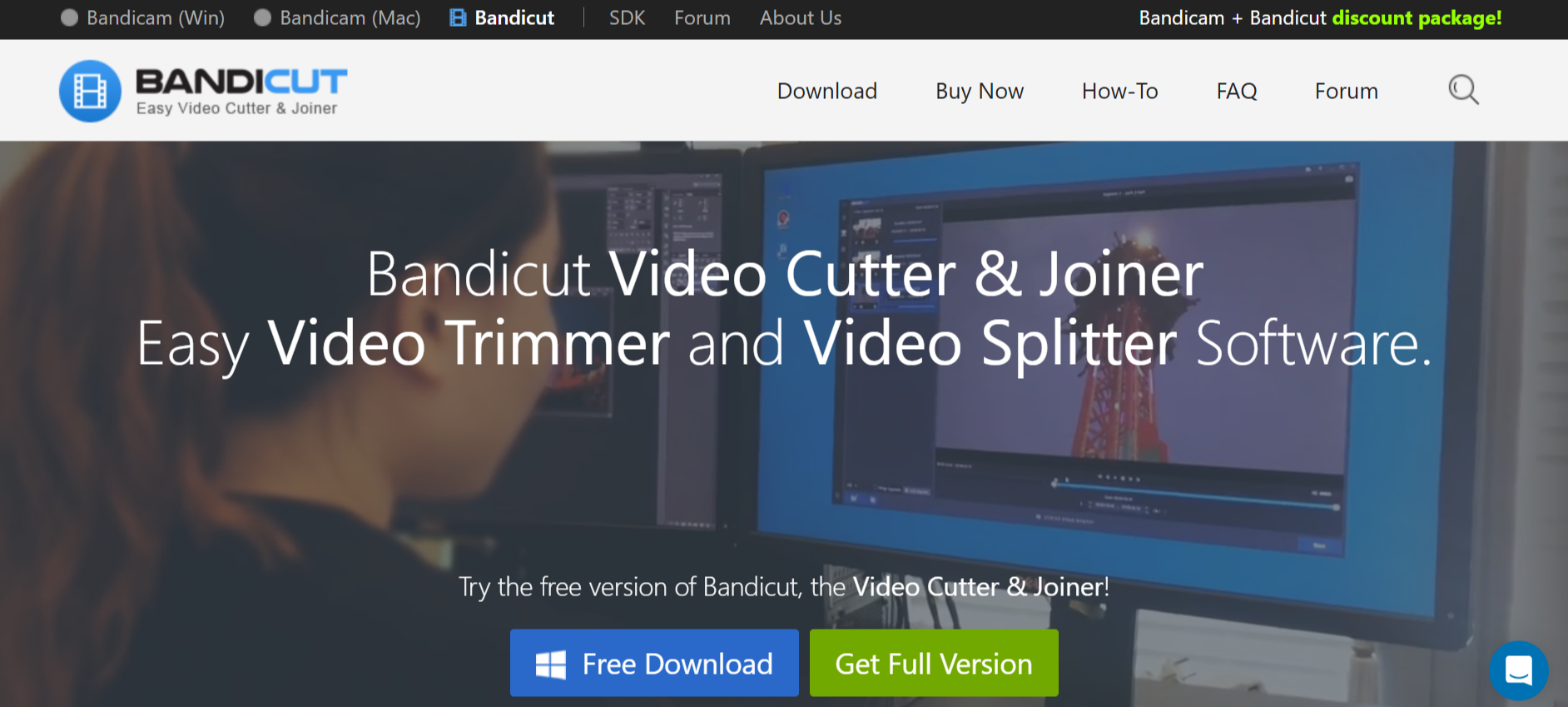
Bandicut specializes in fast splitting that divides large videos by specific time stamps or equal segments. The High Speed Mode processes files without re encoding, maintaining original quality while generating splits rapidly.
Hardware acceleration through GPU processing reduces system load during splitting. Direct upload integration enables posting split clips to YouTube and Vimeo immediately after processing completes.
Key Features:
- High Speed Mode splits without re encoding for quality preservation
- Hardware acceleration reduces processing time and system load
- Direct YouTube and Vimeo upload integration after splitting
8. Shotcut
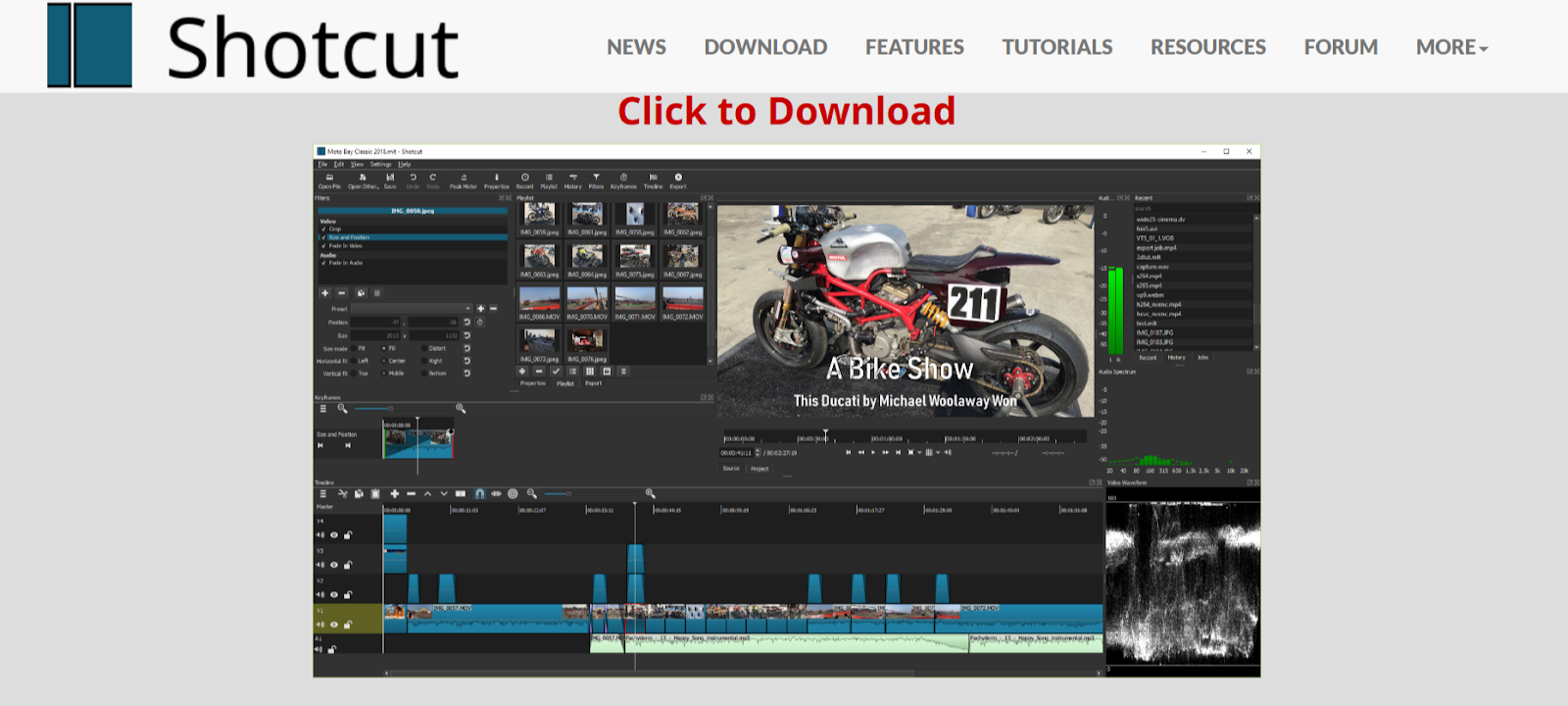
Shotcut provides open source splitting without watermarks or restrictions. The platform supports hundreds of video formats through FFmpeg, handling native timeline editing without requiring file conversions that waste time.
Multi format timeline support enables mixing different resolutions and frame rates within projects. Customizable interface panels adapt to personal workflow preferences.
Key Features:
- Completely open source with no watermarks or feature restrictions
- Supports hundreds of formats without requiring conversions
- Customizable interface adapts to personal workflow preferences
9. DaVinci Resolve
DaVinci Resolve brings professional grade splitting capabilities entirely free. The platform handles everything from basic clip division to complex multi track projects requiring precise frame accurate cuts.
The free version includes features costing thousands in competing software. Professional editors worldwide trust DaVinci Resolve, providing confidence that splitting capabilities scale with growing skills.
Key Features:
- Professional grade tools used in major film and television production
- Frame accurate cuts enable precise split point selection
- Multi track timeline supports complex splitting projects
10. Flowjin
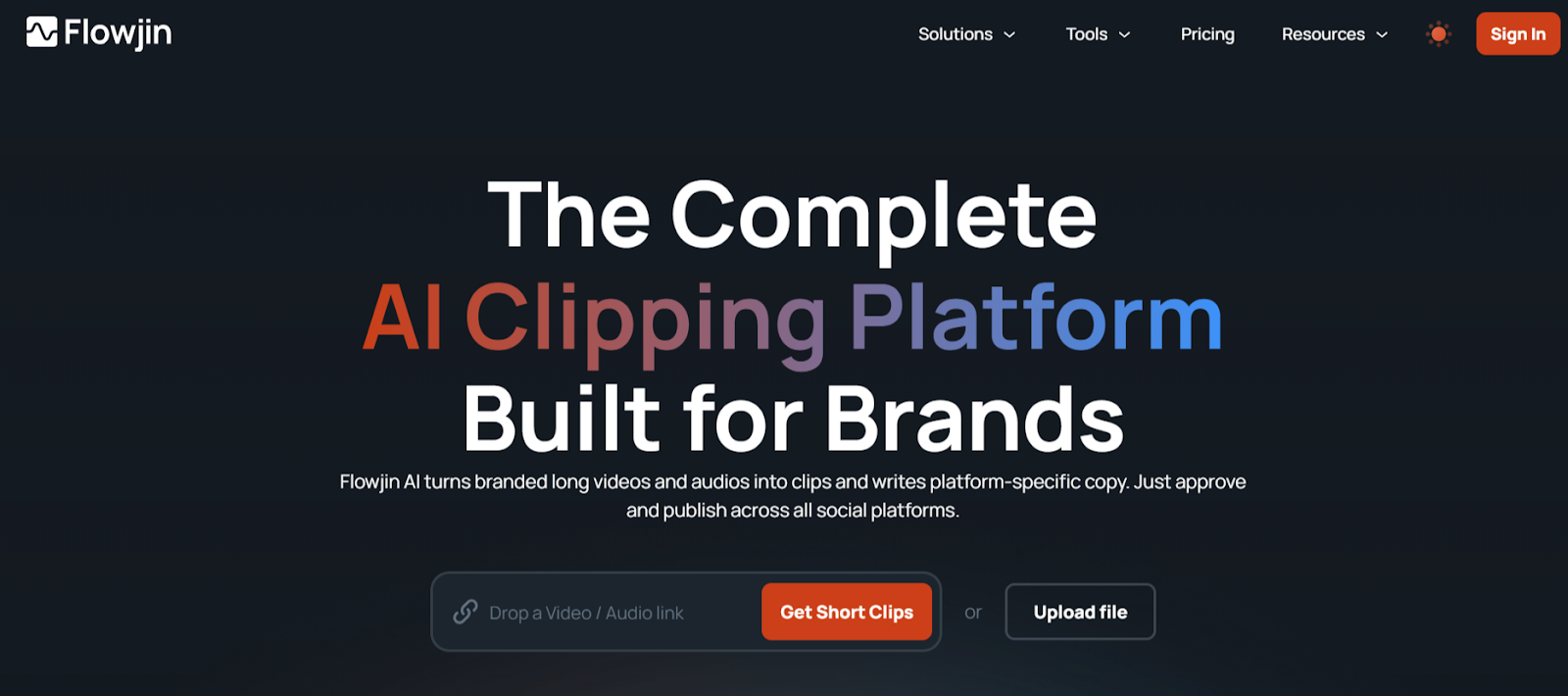
Flowjin is a web-based AI content repurposing tool that helps you split longer videos into multiple short, engaging clips automatically. Instead of manually cutting and trimming footage, Flowjin’s AI scans your video to identify high-impact moments and generates ready-to-share clips optimized for different social platforms. This makes it especially useful for creators, marketers, and social media teams who want to turn webinars, podcasts, or long recordings into bite-sized content quickly.
- Automatically splits long videos into multiple short clips
- Adds captions and formats clips for social platforms
- Supports transcript-based editing and quick exports
Conclusion
Video splitting determines whether large files become manageable assets or persistent obstacles. These platforms prove that automation and quality coexist when intelligent tools handle division complexity. LiveLink AI leads with content aware splitting and batch processing, though each tool addresses specific workflow requirements effectively.
Your large video files represent raw material waiting for organization. Upload limits, storage constraints, and editing performance issues all disappear when working with properly divided clips. Manual splitting consumes hours better spent creating rather than processing.
Start with your largest most problematic files. Process them through your chosen platform, evaluate resulting clip organization and quality, then establish systematic splitting workflows that prevent future bottlenecks. The right tool transforms file management from constant frustration into automated background process.
FAQs
What is the best way to split videos without losing quality?
Use tools with High Speed Mode or smart encoding like LiveLink AI, Bandicut, or DaVinci Resolve that process files without full re encoding. These platforms maintain original quality by copying data streams rather than decoding and re encoding, which causes cumulative quality loss through compression artifacts.
Can I split videos into equal length segments automatically?
Yes, tools like Bandicut and Filmora enable automatic splitting by time duration or file size. Specify desired segment length such as 5 minutes each or 500MB per file, and the platform divides content accordingly. However, LiveLink AI offers superior results through content aware splitting at natural break points.
How do I split large 4K videos without computer crashes?
Use tools with hardware acceleration like Filmora Instant Cutter or Bandicut that leverage GPU processing. Alternatively, try browser based tools like VEED or Kapwing that handle processing on remote servers rather than taxing your local computer, enabling smooth splitting regardless of hardware limitations.
Should I split videos before or after editing?
Split before editing when dealing with massive source files that slow timeline performance. Work with manageable segments throughout editing, then combine finished pieces during final export. However, split after editing when working with reasonable file sizes to maintain maximum flexibility throughout creative process.
Do split videos maintain original timestamps and metadata?
Quality splitters like LiveLink AI, DaVinci Resolve, and Filmora preserve metadata including creation dates, camera information, and other embedded data. However, some basic tools strip metadata during processing. Always verify metadata preservation if maintaining original file information matters for your workflow or archival requirements.