
Posting consistently on TikTok is one of the biggest challenges for marketers, agencies, and creators. The platform rewards frequency, timing, and relevance, yet most workflows are still tied to mobile phones. Downloading clips, transferring files, and posting manually slows everything down, especially when teams manage multiple accounts or publish daily.
Auto posting clips to TikTok from desktop removes these bottlenecks. It allows teams to plan, schedule, and publish content without relying on phones, saving time while improving consistency. This guide explains how desktop-based auto posting works, why it matters, and how LiveLink AI fits into an efficient TikTok publishing workflow.
Why desktop based TikTok posting matters
TikTok may be a mobile-first platform, but modern content production happens on desktops.
Key reasons teams prefer desktop workflows:
- Video editing and clipping tools run on desktop
- Team collaboration is easier
- Files are already stored on cloud drives
- Scheduling and approvals happen in browsers
Manually moving files from desktop to phone creates friction and increases the chance of delays and errors.
Can you auto post to TikTok from desktop
Yes, but with limitations depending on the tools used.
TikTok itself supports desktop uploads, but native scheduling and bulk publishing options are limited. This is why marketers rely on third-party platforms that integrate with TikTok publishing while providing planning and automation features.
What auto posting actually means
Auto posting is not just uploading a video. A complete auto posting workflow includes:
- Scheduling clips in advance
- Adding captions and hashtags
- Publishing at optimal times
- Maintaining consistent posting frequency
Desktop auto posting tools handle these steps without requiring manual phone interaction.
Preparing clips for TikTok auto posting
Before scheduling clips, they must meet TikTok’s format requirements.
Video format guidelines
- Aspect ratio: 9:16
- Resolution: 1080 x 1920
- Length: 5 to 60 seconds
- File type: MP4 or MOV
Content best practices
- Start with a strong hook in the first 2 seconds
- Use captions for sound-off viewing
- Keep visuals centered for mobile screens
LiveLink AI prepares clips in TikTok-ready formats automatically.
Step by step guide to auto post TikTok clips from desktop
Step 1 create or collect your clips
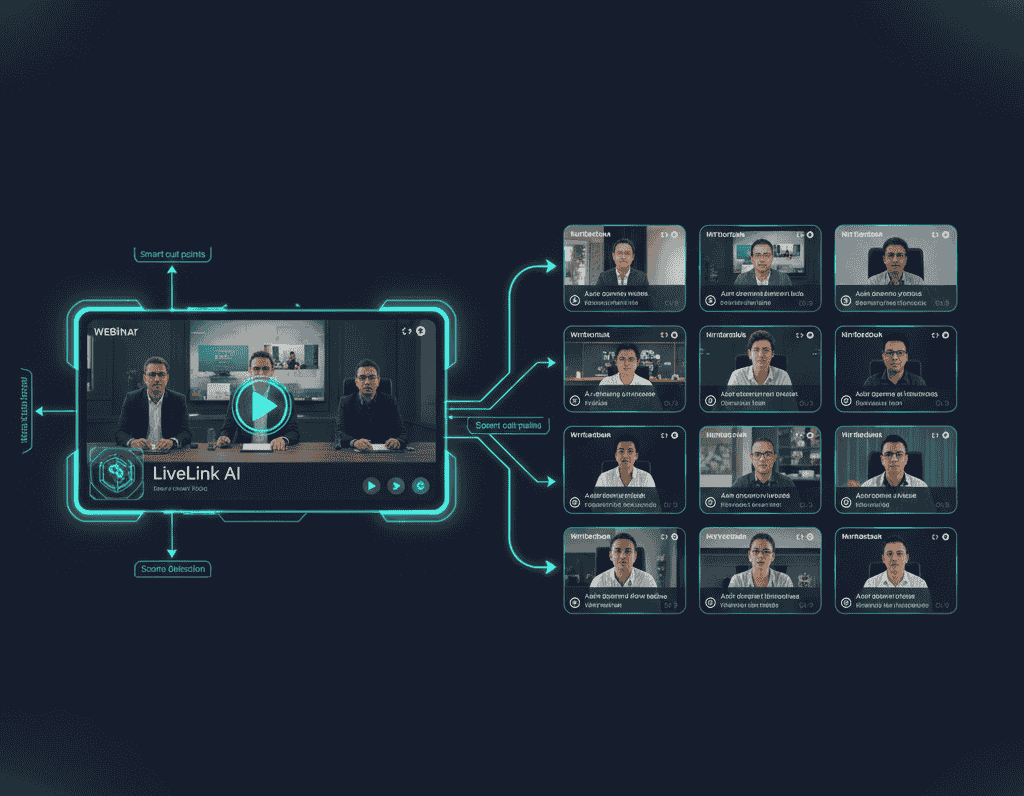
Use LiveLink AI to turn long videos into multiple TikTok-ready clips with speaker tracking and captions.
Step 2 apply branding templates
Ensure logos, fonts, and colors are consistent across all clips.
Step 3 write captions and hashtags
Prepare captions in advance, focusing on clarity and relevance.
Step 4 schedule clips from desktop
Select publish dates and times using a desktop scheduling tool connected to TikTok.
Step 5 review and confirm
Double-check formatting, captions, and posting times before publishing.
Step 6 monitor performance
Track views, engagement, and follower growth after publishing.
Why LiveLink AI simplifies TikTok auto posting
LiveLink AI focuses on preparation and automation rather than manual posting.
Key benefits:
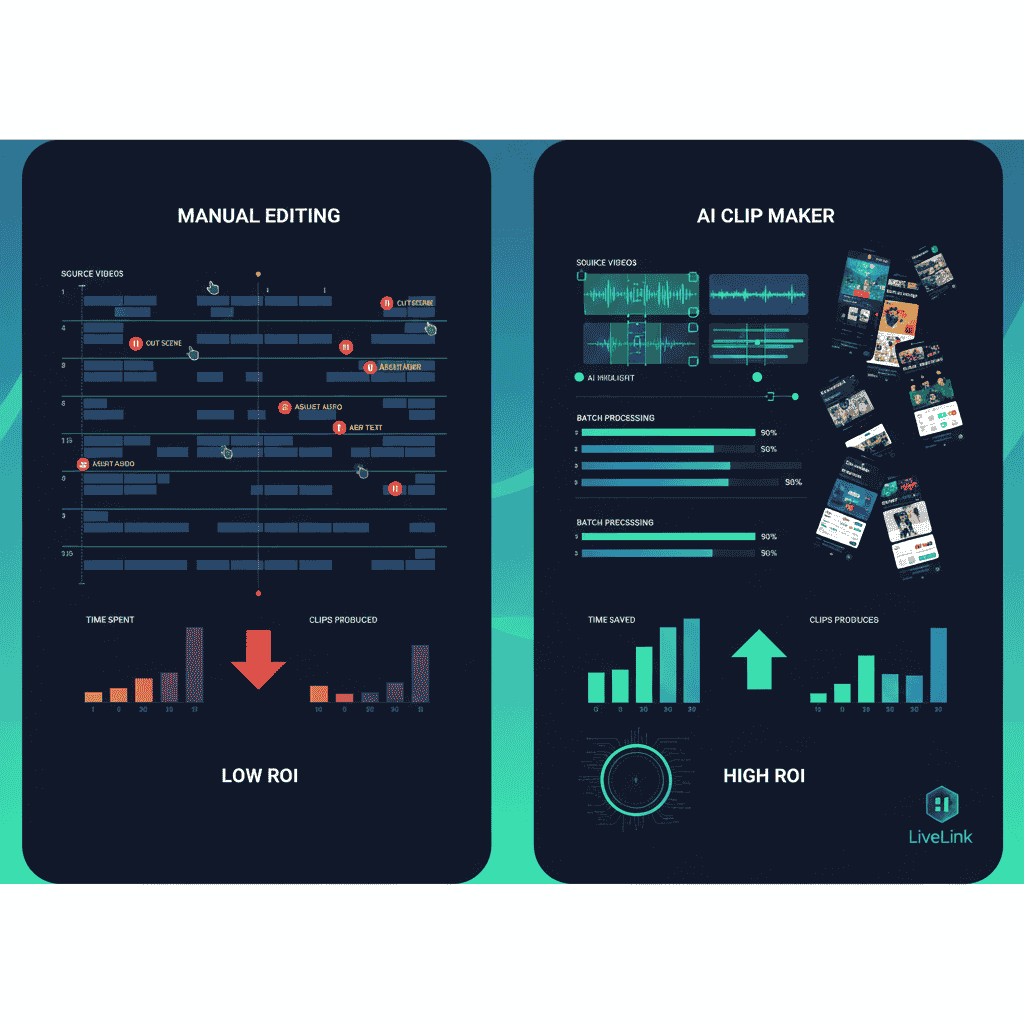
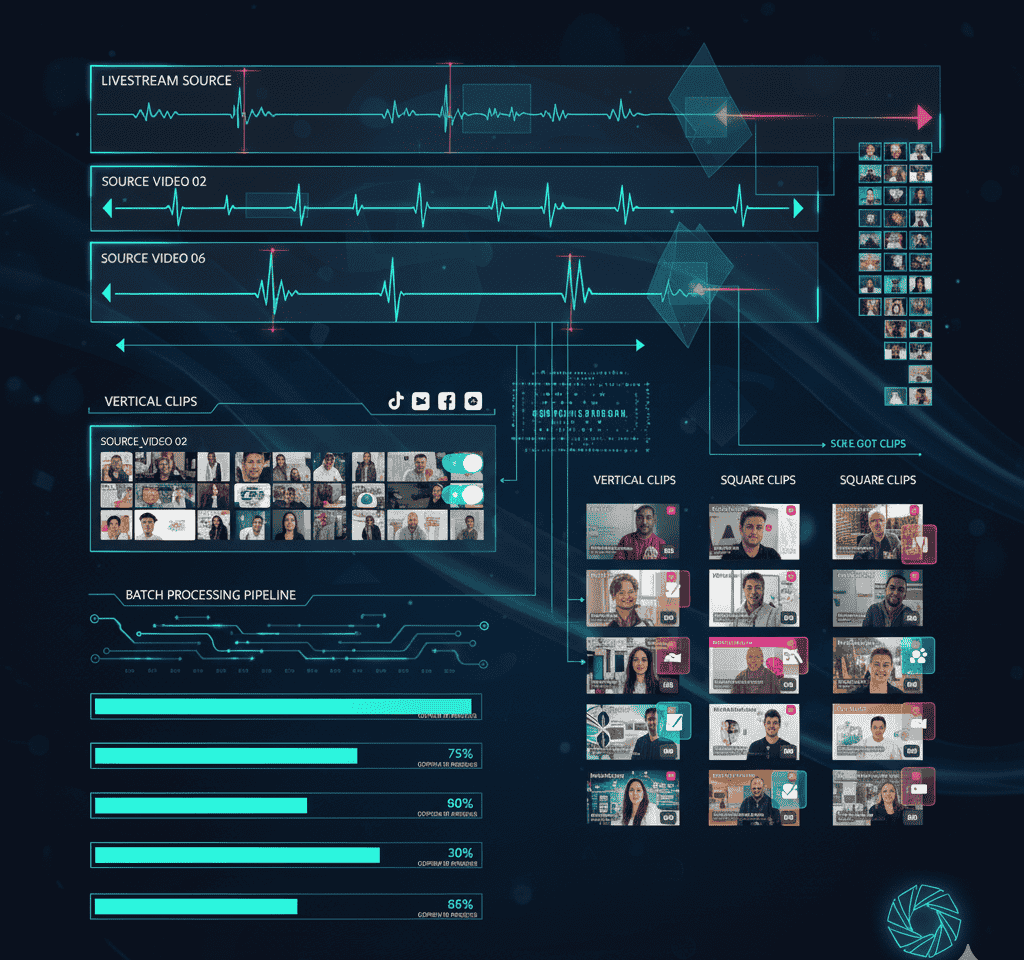
- Batch clip creation for TikTok
- Automatic captions and formatting
- Brand templates applied at scale
- Integration ready outputs for schedulers
This allows teams to handle TikTok content entirely from desktop workflows.
Scheduling strategies that work
Consistency over volume
Posting 3 to 5 times per week consistently outperforms irregular bursts.
Timing matters
Test different posting times and adjust based on performance data.
Content rotation
Rotate between educational, promotional, and personality driven clips.
Common mistakes when auto posting to TikTok
Ignoring native trends
Pre-scheduled clips should still align with platform culture.
Over automating captions
Human review ensures tone and clarity.
Posting without testing
Test a few clips before scheduling weeks of content.
Desktop workflow for agencies
Agencies benefit the most from desktop auto posting.
Typical workflow:
- Client uploads long-form content
- LiveLink AI generates multiple TikTok clips
- Agency applies client-specific templates
- Clips are scheduled from desktop
- Weekly reports track performance
This removes phone dependency and speeds up approvals.
Measuring success of auto posting
Track metrics that indicate growth and efficiency.
- Posting consistency
- Time saved per post
- Engagement per clip
- Follower growth
FAQs
Can TikTok ban accounts for auto posting
Using approved third-party tools does not violate policies when used correctly.
Is desktop posting better than mobile
It is more efficient for teams, especially at scale.
Can multiple accounts be managed
Yes, with the right tools.
Do captions and hashtags matter
Yes, they help with discovery and engagement.
Does LiveLink AI post directly to TikTok
LiveLink AI prepares clips and integrates into scheduling workflows for desktop posting.
Final takeaway
Auto posting clips to TikTok from desktop gives marketers and agencies control, consistency, and speed. It eliminates phone-based friction and supports scalable content operations.
LiveLink AI fits into this workflow by preparing TikTok-ready clips with captions, branding, and formatting, allowing teams to schedule and publish confidently from desktop-based tools. Consistent, well-prepared clips lead to better engagement and predictable growth on TikTok.