
Webinars are a treasure trove of content, offering insights, expert discussions, demonstrations, and actionable tips. Yet, many creators and agencies underutilize this content, often sharing only the full-length recording. By repurposing a single webinar into multiple social clips, you can maximize reach, engagement, and return on investment.
This guide provides a detailed roadmap to transform one webinar into at least 10 compelling social clips, leveraging AI-powered tools like LiveLink AI for efficiency, professional quality, and multi-platform optimization.
Why repurpose webinars into social clips
Short-form content is more consumable and shareable across platforms. Audiences rarely watch full-length webinars, but highlight clips can capture attention quickly.
Key statistics:
- 72% of viewers prefer short videos over long-form content (Wistia)
- Repurposing content increases output by 60-70% without extra production (Content Marketing Institute)
- Social videos under 60 seconds have higher completion rates, crucial for TikTok, Instagram Reels, and YouTube Shorts (Vidyard)
- 68% of marketers report higher engagement with short-form clips compared to long videos (HubSpot)
By repurposing webinars, agencies can reach broader audiences while saving time and resources.
Step-by-step guide to creating social clips from a webinar
Step 1: Record and organize your webinar
- Ensure high-quality video and audio recording.
- Use clear visuals, proper lighting, and minimal background noise.
- Store the recording in a centralized location for easy access.
- Categorize content by sections, topics, or highlights.
Step 2: Identify highlight moments
Review the webinar to select impactful segments that work as standalone clips:
- Key takeaways and insights
- Demonstrations and tutorials
- Memorable quotes or statements
- Audience questions and answers
Step 3: Use AI to automate clipping
LiveLink AI simplifies this step by:
- Uploading the full webinar video
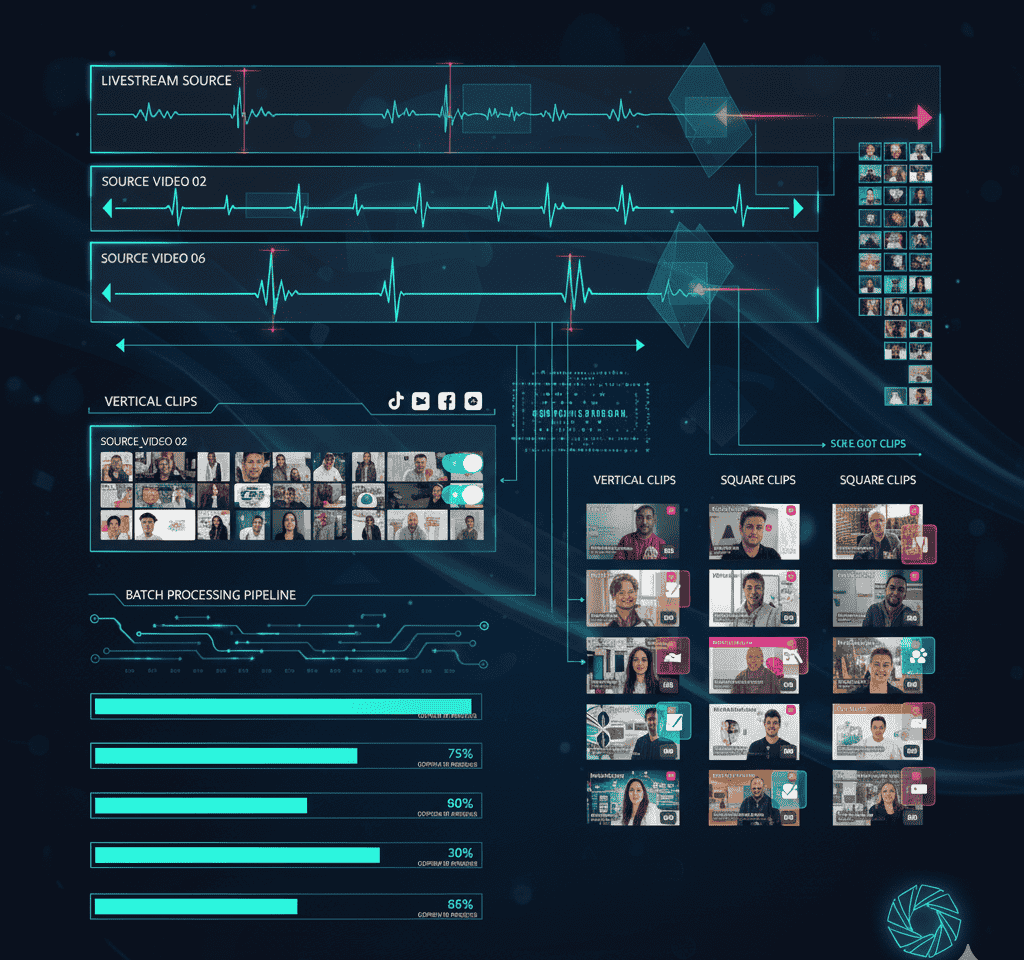
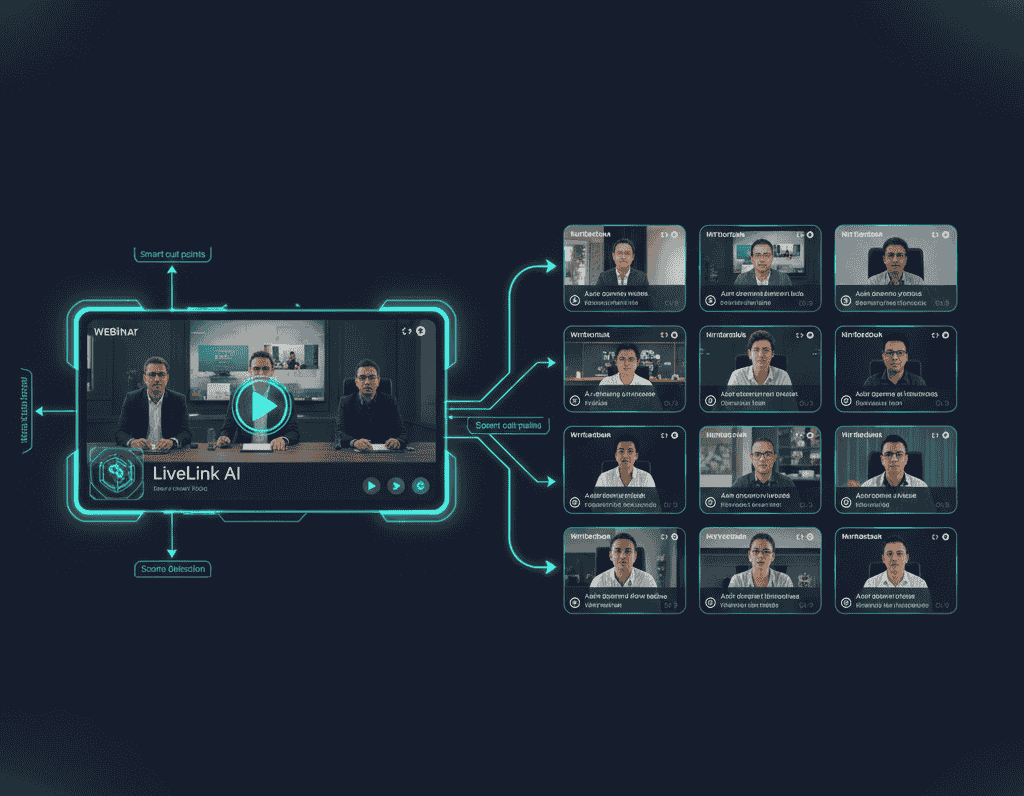
- Detecting high-value segments based on engagement, audio emphasis, and visual cues
- Automatically generating multiple social clips
Benefits:
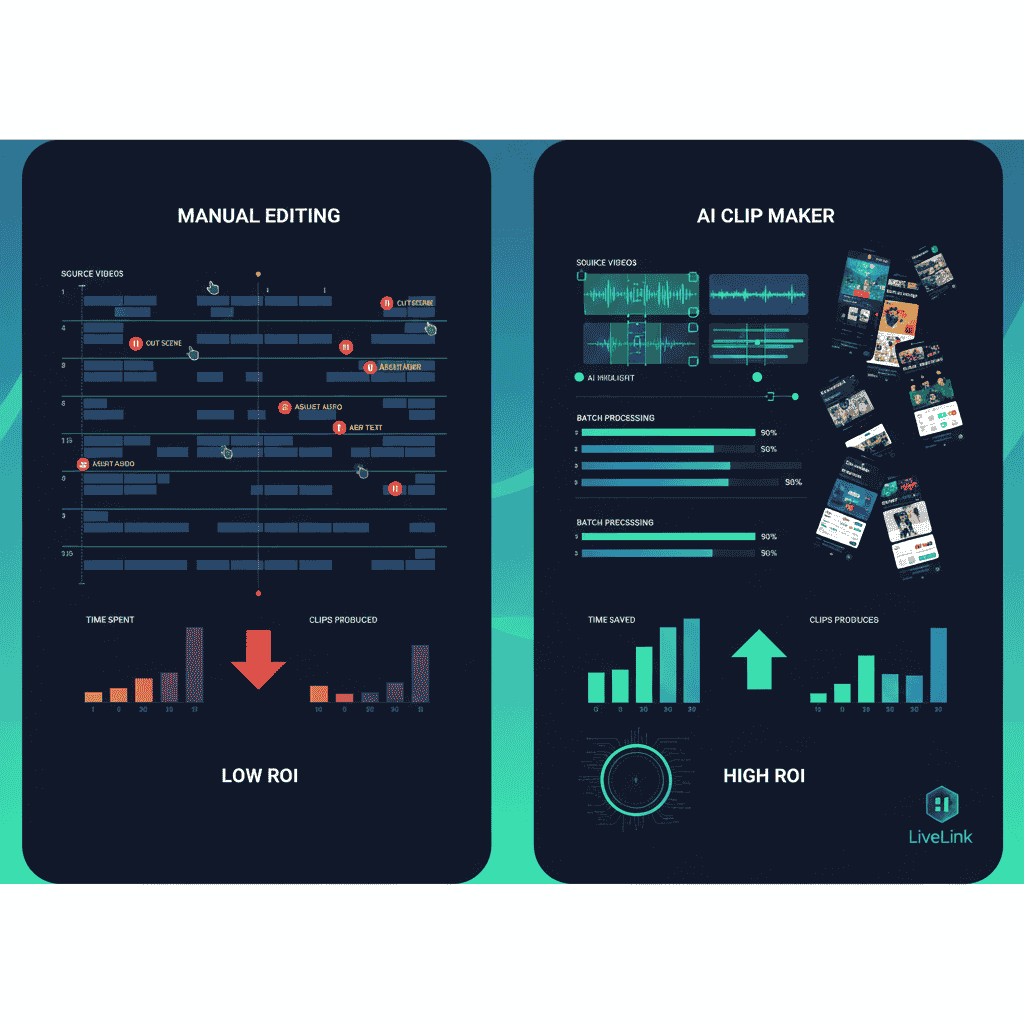
- Saves hours of manual editing
- Produces professional-quality clips
- Creates multiple formats for different platforms
Step 4: Add captions and branding
- Captions improve accessibility, retention, and viewer comprehension.
- Include logos, brand colors, and fonts to maintain visual consistency.
- LiveLink AI allows batch application of captions and templates, reducing repetitive work.
Step 5: Format clips for each platform
- Vertical (9:16) for TikTok, Instagram Reels, and YouTube Shorts
- Square (1:1) for Instagram feeds and LinkedIn posts
- Landscape (16:9) for YouTube and Facebook
Proper formatting ensures the clips are optimized for each platform without losing key content.
Step 6: Schedule and distribute content
- Plan a content calendar for social media distribution.
- Use AI tools to auto-schedule clips at optimal times.
- Maintain a consistent posting rhythm to build audience expectations and engagement.
Step 7: Analyze performance and refine
- Track metrics: views, engagement, watch time, click-throughs
- Identify top-performing clips to guide future content creation
- Adjust clip selection, length, or editing style based on analytics for better results
Advanced strategies for agencies
Segment by theme or topic
Divide webinars into clips by subtopics to target specific audiences. This allows more precise content marketing and ad campaigns.
Combine with speaker tracking
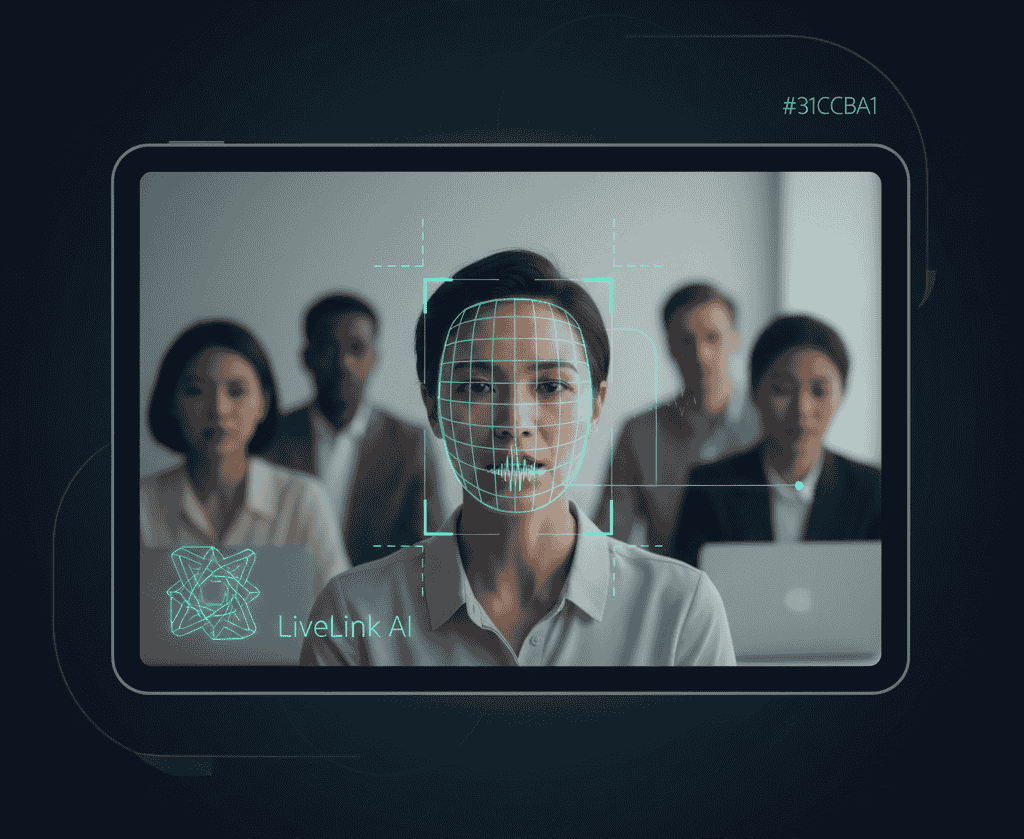
Integrate speaker tracking (via LiveLink AI) to keep presenters in focus, enhancing professionalism and viewer engagement.
Repurpose clips across multiple channels
- Convert webinar highlights into short-form clips for TikTok, Reels, YouTube Shorts, LinkedIn, and other social media platforms.
- Maximize content reach and ROI without additional filming.
Create teaser clips
Produce 15-30 second teaser clips to promote the full webinar. Teasers can attract audiences to watch longer recordings or attend future live sessions.
Batch processing and automation
Use AI tools to process multiple webinars simultaneously, generating clips in batches. This saves significant time for agencies managing multiple clients.
Case examples
Example 1: Marketing webinar A marketing agency transformed a 90-minute webinar into 12 clips:
- 5 tutorial highlights for YouTube Shorts
- 4 insights for Instagram Reels
- 3 Q&A clips for LinkedIn Result: Social engagement increased by 45%, and new leads grew by 30%.
Example 2: Product launch webinar A SaaS company repurposed a webinar into 10 clips emphasizing product features. Clips were shared across TikTok, LinkedIn, and YouTube, generating high engagement and driving trial sign-ups.
FAQs
How many clips can one webinar produce?
Depending on the length and content density, 8-12 clips are typically achievable.
Does AI eliminate manual editing?
AI handles most tasks like clipping, captioning, and formatting. Minimal edits may be required for fine-tuning.
Can clips be branded consistently?
Yes, templates allow application of logos, colors, and fonts for brand consistency.
Do repurposed clips perform as well as original content?
Often, short-form clips outperform full-length videos in social media engagement and reach.
Can AI schedule clips automatically?
Yes, LiveLink AI allows automated scheduling across multiple platforms, maintaining consistency.
Takeaway
Repurposing a webinar into multiple social clips is a powerful content strategy that maximizes engagement, extends content life, and improves ROI. By leveraging AI tools like LiveLink AI, creators and agencies can efficiently extract high-value moments, add captions and branding, format for multiple platforms, and schedule content for consistent posting. Implementing this strategy allows teams to generate high-quality social clips with minimal effort while reaching a broader audience and increasing visibility across channels.